AI Pal: Bring Your Own Model to Burp Suite
A bring-your-own-model extension for running local and cloud LLMs inside Burp Suite
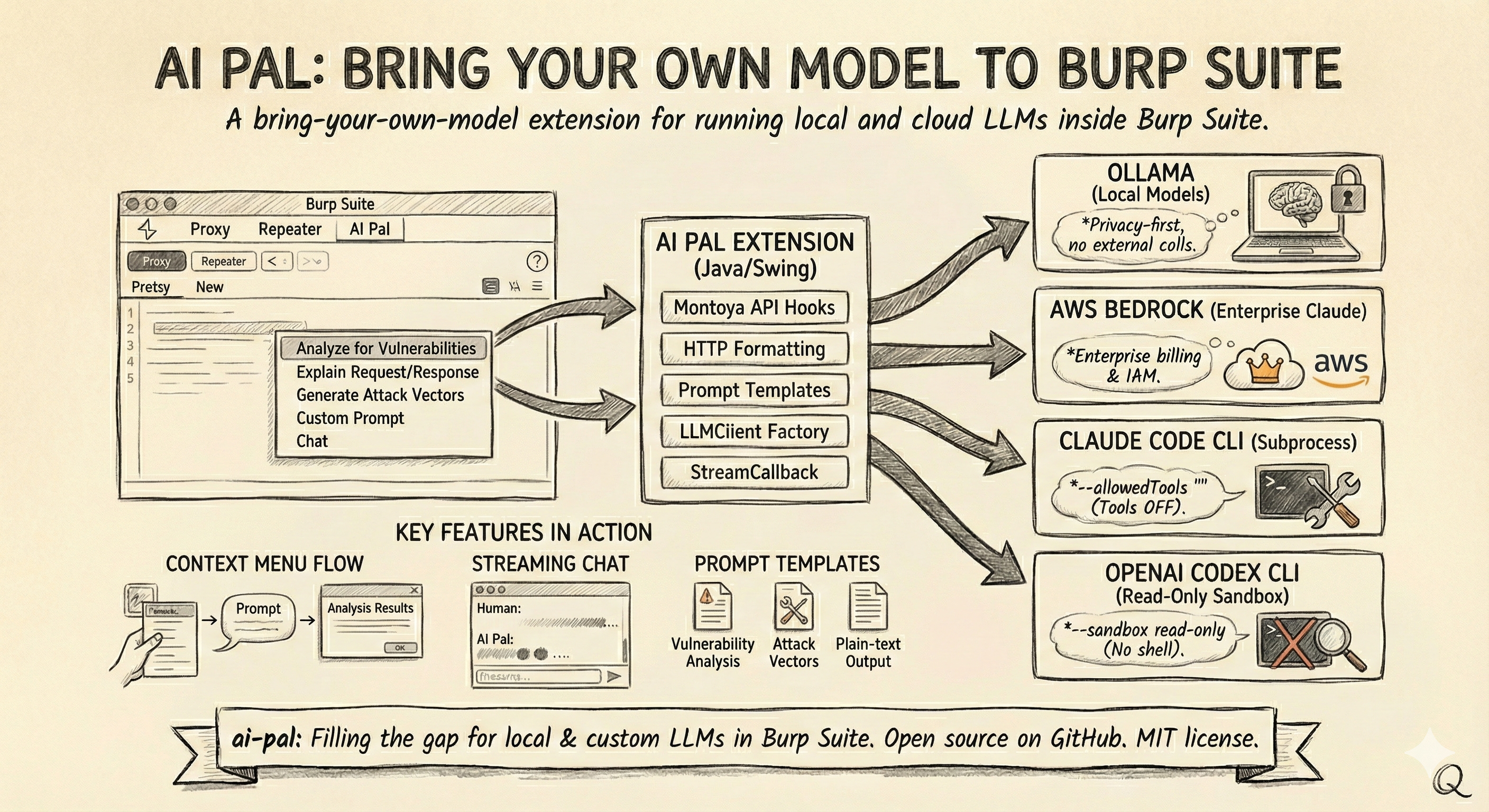
Table of Contents
- Burp Suite and AI: Why I Built It
- The Montoya API
- What AI Pal Does
- Architecture
- LLM Providers
- Key Features in Action
- Closing Notes
Burp Suite and AI: Why I Built It
TL;DR — I built AI Pal, a Burp Suite extension that lets you bring your own LLM—local or cloud—for vulnerability analysis, request explanation, and interactive conversations.
PortSwigger has been adding AI features to Burp Suite, and they’re solid. You can ask the AI to explain a request, explore an issue, generate custom prompts in Repeater, filter for broken access control findings, and more. If you’re a Burp user, you’ve probably seen the AI buttons showing up across the interface.
All of it currently routes through PortSwigger’s managed AI platform, with a credit-based billing model. That works well for most use cases. But I had situations where I wanted to run a local model for data-sensitivity reasons, or use a specific provider through my own account, and there wasn’t a way to do that yet.
I looked into whether the extension API could help. The Montoya API does expose AI interfaces—Ai, Prompt, Message, PromptResponse—but they go through the same managed platform. You call Ai.isEnabled(), build a Prompt with Message objects, and the request routes through PortSwigger’s infrastructure. There’s no hook to redirect it to your own endpoint, and extensions using the official AI API follow the same path.
As of this writing, PortSwigger hasn’t announced a bring-your-own-model option. It may well be on their roadmap. In the meantime, I built AI Pal for my immediate use case.
The Montoya API
For anyone not familiar, the Montoya API is Burp Suite’s extension API. It’s the interface that lets you hook into HTTP traffic, register UI tabs, add context menu items, create editor panels, persist settings, and generally extend Burp to do things PortSwigger didn’t build in. Extensions are written in Java, the UI is Swing, and the central object you work with is the MontoyaApi interface that gets passed to your extension at initialization.
The API is what makes something like AI Pal possible. It gives you the hooks to intercept requests, format them, send them to an LLM of your choosing, and display the results inside Burp’s UI.
What AI Pal Does
AI Pal is a “bring-your-own-model” extension. It connects Burp Suite to four LLM providers:
- Ollama — local models, nothing leaves your machine
- AWS Bedrock — enterprise Claude models through your own AWS account
- Claude Code CLI — Anthropic’s CLI tool running as a subprocess
- OpenAI Codex CLI — OpenAI’s CLI tool running as a subprocess
From there, it gives you a set of context menu actions you can run on any request or response:
| Action | What It Does |
|---|---|
| Analyze for Vulnerabilities | OWASP Top 10 coverage—SQLi, XSS, CSRF, SSRF, XXE, IDOR, and more |
| Explain Request/Response | Plain-English breakdown of HTTP traffic |
| Generate Attack Vectors | Targeted test payloads with bypass techniques |
| Custom Prompt | Your own prompt with the HTTP content as context |
| Chat | Opens the request in an interactive chat session |
Beyond the context menu, you get:
- Interactive streaming chat with multi-turn conversation history
- Editor tab integration in Repeater and other Burp tools—an “AI Pal” tab appears alongside the existing request/response editors
- Task dashboard for tracking editor-tab analyses and reviewing results
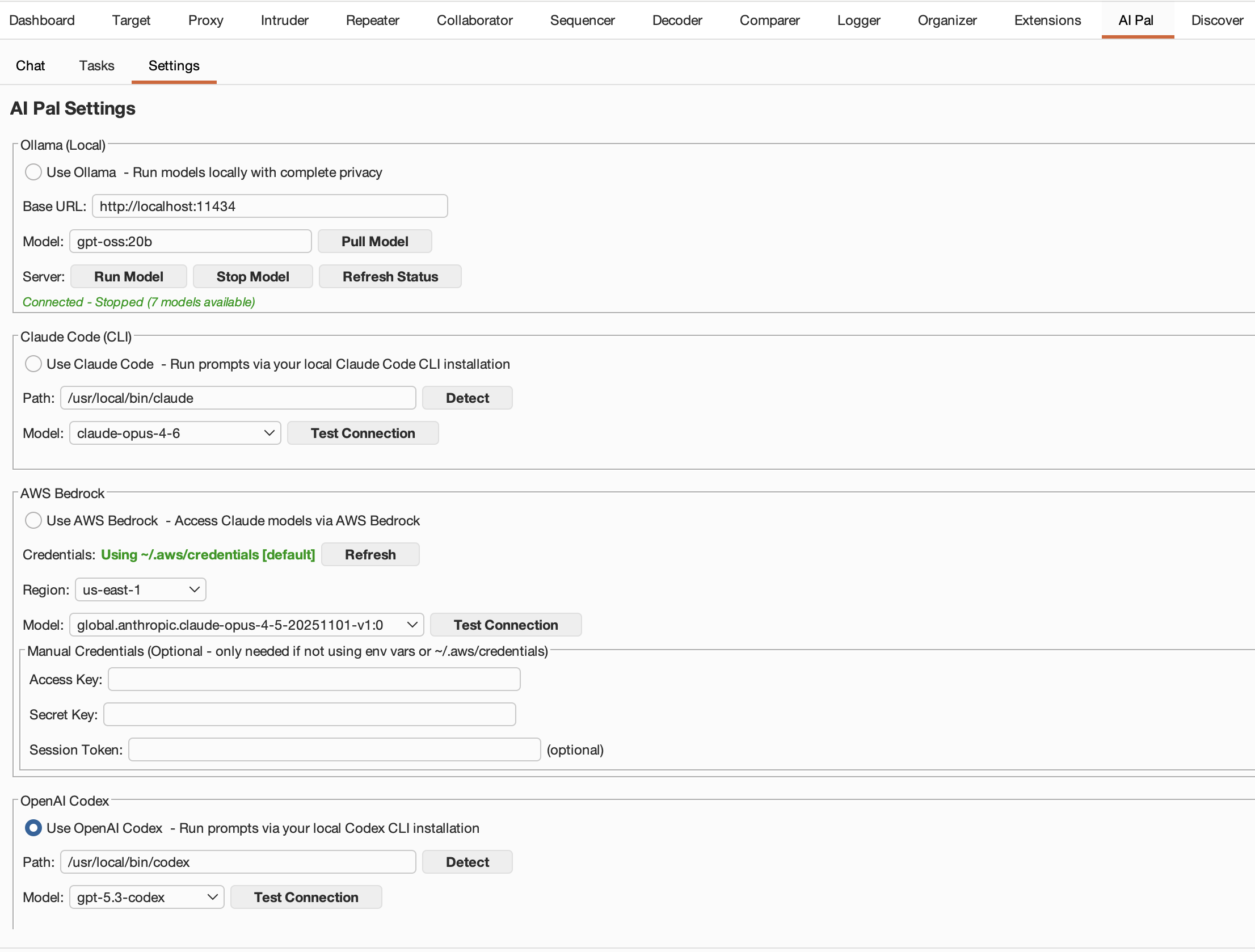 AI Pal settings panel with provider configuration
Architecture
The extension follows a straightforward component model. At initialization, Extension.java wires everything together: settings management, the LLM client factory, task tracking, UI tabs, context menu providers, and editor panel providers. When you right-click a request, the flow goes: context menu selection → HTTP formatting → prompt template → LLM client → response dialog.
The core abstraction is the LLMClient interface. Every provider implements it, and a factory creates the right client based on your settings:
1
2
3
4
5
6
7
8
9
10
11
12
13
14
15
16
17
18
19
20
21
22
23
24
25
26
27
28
public interface LLMClient {

    interface StreamCallback {
        void onChunk(String chunk);
        void onComplete(int totalTokens);
        void onError(String error);
        default boolean isCancelled() { return false; }
    }

    LLMResponse complete(String prompt, String systemPrompt);
    LLMResponse chat(List<ChatMessage> messages, String newMessage);

    default void chatStreaming(List<ChatMessage> messages, String newMessage,
                               StreamCallback callback) {
        LLMResponse response = chat(messages, newMessage);
        if (response.isSuccess()) {
            callback.onChunk(response.getContent());
            callback.onComplete(response.getTokensUsed());
        } else {
            callback.onError(response.getErrorMessage());
        }
    }

    default boolean supportsStreaming() { return false; }
    boolean testConnection();
    String getProviderName();
    String getModel();
}
The StreamCallback inner interface is what enables real-time streaming for providers that support it. The default chatStreaming implementation falls back to a single-shot response for providers that don’t.
The factory uses Java 21 switch expressions to instantiate the right client:
1
2
3
4
5
6
7
8
9
10
11
12
13
14
15
16
public LLMClient createClient(LLMProvider provider) {
    String model = settingsManager.getModel(provider);
    return switch (provider) {
        case OLLAMA -> new OllamaClient(
                settingsManager.getOllamaBaseUrl(), model);
        case BEDROCK -> new BedrockClient(
                settingsManager.getBedrockAccessKey(),
                settingsManager.getBedrockSecretKey(),
                settingsManager.getBedrockSessionToken(),
                settingsManager.getBedrockRegion(), model);
        case CLAUDE_CODE -> new ClaudeCodeClient(
                settingsManager.getClaudeCodePath(), model);
        case CODEX -> new CodexClient(
                settingsManager.getCodexPath(), model);
    };
}
Settings are persisted through Burp’s built-in preferences API (MontoyaApi.persistence().preferences()), so your provider configuration survives restarts.
LLM Providers
Each provider has its own integration approach depending on how the underlying LLM is accessed.
Ollama — Local and Private
Ollama is the privacy-first option. Everything runs on your machine—no API keys, no external calls. The client uses Ollama’s REST API (/api/generate for completions, /api/chat for conversations), and for non-streaming requests, it routes through Burp’s own Montoya HTTP API via api.http().sendRequest(). Streaming uses a direct HttpURLConnection with line-by-line JSON parsing to feed chunks back through the StreamCallback.
If you’re working on an engagement where data can’t leave the network, this is your provider.
AWS Bedrock — Enterprise Claude
Bedrock is the enterprise path. It lets you use Claude models through your own AWS account, which means your organization’s existing billing, IAM policies, and compliance controls apply. The client implements full AWS Signature v4 signing manually—HMAC-SHA256 via javax.crypto.Mac, SHA-256 hashing via java.security.MessageDigest—and supports a credential resolution chain: explicit settings in the UI, then environment variables, then ~/.aws/credentials using AWS_DEFAULT_PROFILE (or default).
The models are accessed through global inference profiles, so you get cross-region availability:
1
2
3
4
global.anthropic.claude-sonnet-4-5-20250929-v1:0
global.anthropic.claude-sonnet-4-20250514-v1:0
global.anthropic.claude-haiku-4-5-20251001-v1:0
global.anthropic.claude-opus-4-5-20251101-v1:0
Claude Code CLI — Subprocess-Based
This provider runs Anthropic’s claude CLI as a local subprocess via ProcessBuilder. The prompt gets written to stdin (not passed as a shell argument—avoids injection) and the response streams back as JSON events: assistant, content_block_delta, message_delta, result.
One deliberate security decision: the client disables all built-in Claude Code tools by passing --tools "". Claude Code normally has access to built-in capabilities such as Bash and filesystem operations (read, write, edit), and because this plugin feeds untrusted HTTP traffic directly into prompts, a crafted payload could attempt to induce command execution. By setting --tools "", we remove all built-in tool availability from the agent, eliminating that execution surface entirely. We also pass --allowedTools "" to auto-approve nothing in headless mode, ensuring no tool can run without explicit configuration even if permissions behavior changes. The result is strict prompt-only analysis: the model can process and reason over text, but it has no ability to execute commands or interact with the local environment through Claude Code’s built-in tool interface.
1
2
3
4
5
6
7
8
9
10
11
12
13
14
15
16
17
18
19
20
21
22
23
private List<String> buildCommand(String outputFormat) {
    List<String> command = new ArrayList<>();
    command.add(claudePath);
    command.add("-p");
    command.add("--output-format");
    command.add(outputFormat);
    if ("stream-json".equals(outputFormat)) {
        command.add("--verbose");
    }
    command.add("--model");
    command.add(model);
    // CRITICAL: Disable all tools to prevent prompt injection attacks.
    // Claude Code is an agent with access to Bash, Read, Write, etc.
    // Since we feed untrusted HTTP traffic into prompts, a malicious payload
    // could trick Claude into executing arbitrary commands without this flag.
    // --tools "" removes all tools from the agent entirely.
    // --allowedTools "" ensures no tools are auto-approved as a second layer.
    command.add("--tools");
    command.add("");
    command.add("--allowedTools");
    command.add("");
    return command;
}
OpenAI Codex CLI — Read-Only Sandbox
Similar subprocess approach to Claude Code. The client runs codex exec with --sandbox read-only, features.shell_tool=false, and web_search=disabled. Same principle—the LLM processes what you give it but doesn’t get to act on the system.
1
2
3
4
5
6
7
8
9
10
11
12
13
14
15
16
17
18
19
20
21
22
23
24
private Process startCodexProcess() throws Exception {
    List<String> command = new ArrayList<>();
    command.add(codexPath);
    command.add("exec");
    command.add("--json");
    command.add("--ephemeral");
    command.add("--skip-git-repo-check");
    command.add("--sandbox");
    command.add("read-only");
    command.add("-c");
    command.add("features.shell_tool=false");
    command.add("-c");
    command.add("web_search=disabled");
    command.add("-m");
    command.add(model);
    command.add("-"); // read prompt from stdin

    ProcessBuilder pb = new ProcessBuilder(command);
    pb.redirectErrorStream(false);
    pb.directory(new java.io.File(System.getProperty("user.home")));
    CliEnvironmentUtil.ensureNodePath(pb);

    return pb.start();
}
Streaming parses JSONL events (item.started, item.updated, item.completed, turn.completed) and tracks text deltas by item ID.
Key Features in Action
Context Menu Flow
Right-click any request or response in Burp, and AI Pal’s actions appear in the context menu. Selecting one formats the HTTP traffic into a structured prompt, prepends the appropriate system prompt, and sends it to your configured provider. The result appears in a dialog or, if you chose “Chat,” opens in the interactive chat tab.
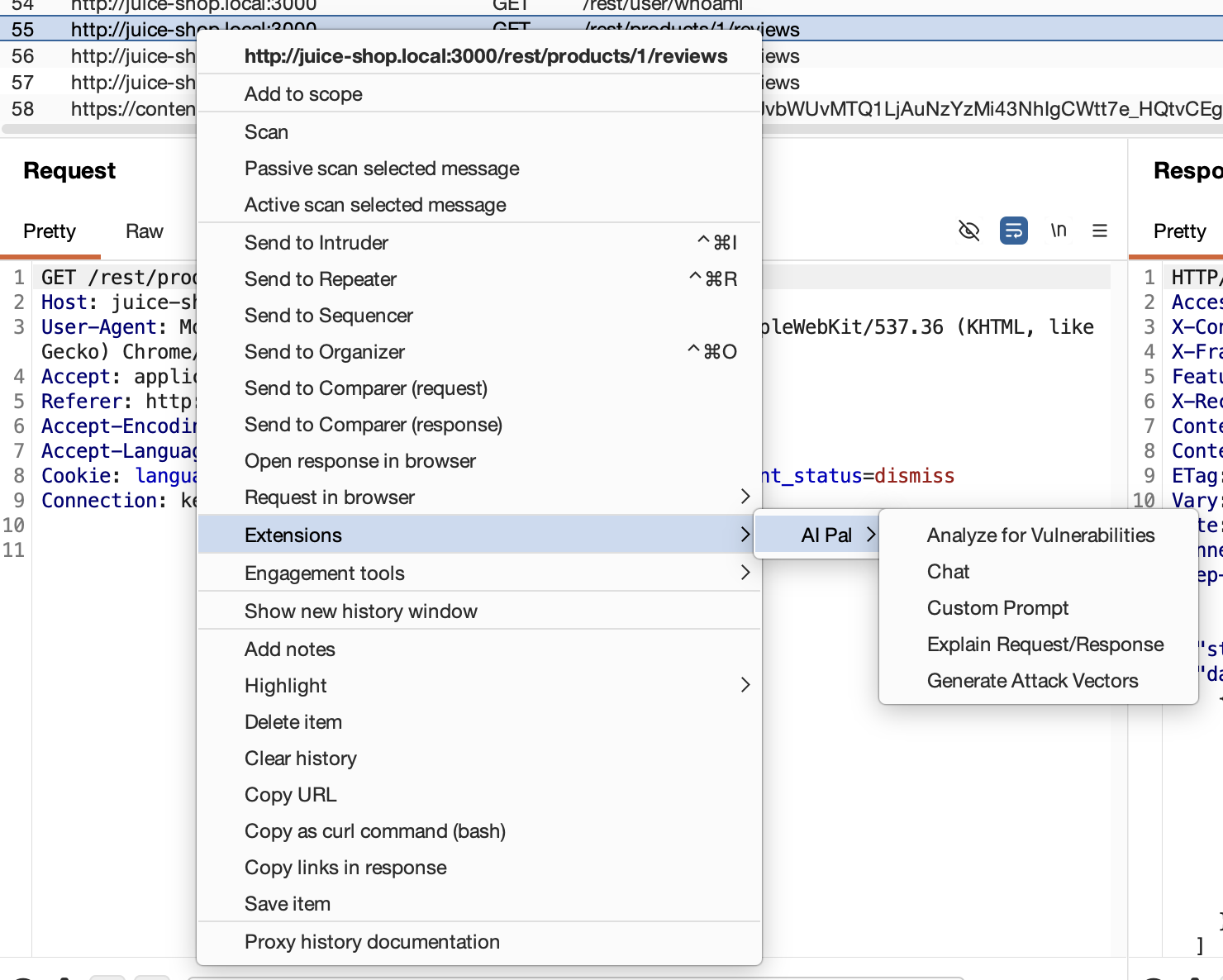 Context menu showing AI Pal actions on an intercepted request
Streaming Chat
The chat feature supports multi-turn conversations with full history. You can send an HTTP request to chat from the context menu, ask follow-up questions, and the model maintains context across the conversation. Providers that support streaming (Ollama, Claude Code, Codex) render responses in real-time.
Prompt Templates
Each action uses a tailored system prompt. The vulnerability analysis template, for example, instructs the model to act as an expert pentester and covers authentication/authorization flaws, injection vectors, business logic issues, information disclosure, and protocol-level misconfigurations. The attack vector template focuses on generating specific payloads—SQLi, XSS, command injection, path traversal, SSRF, auth bypasses—with evasion techniques.
All templates append instructions enforcing plain-text output. No markdown, no HTML, no JSON in the response. This keeps the output readable in Burp’s Swing-based UI without needing a renderer.
Analysis Results
Here’s an example of what the vulnerability analysis output looks like after running it against a request:
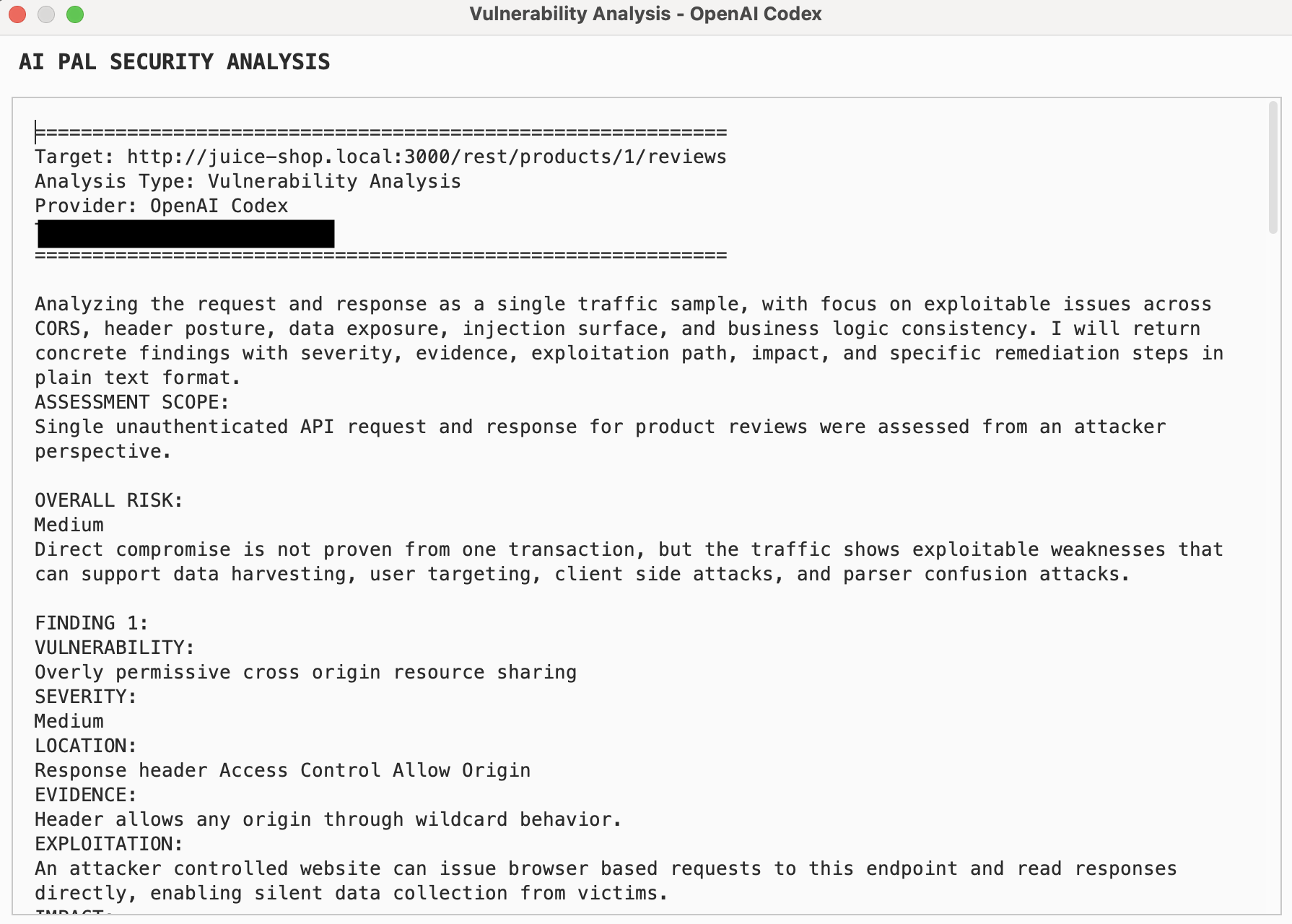 Vulnerability analysis output for an intercepted HTTP request
When you trigger analysis from the AI Pal editor tab (for example in Repeater), each operation gets logged to the Tasks tab where you can track status, review the prompt that was sent, and inspect the full result.
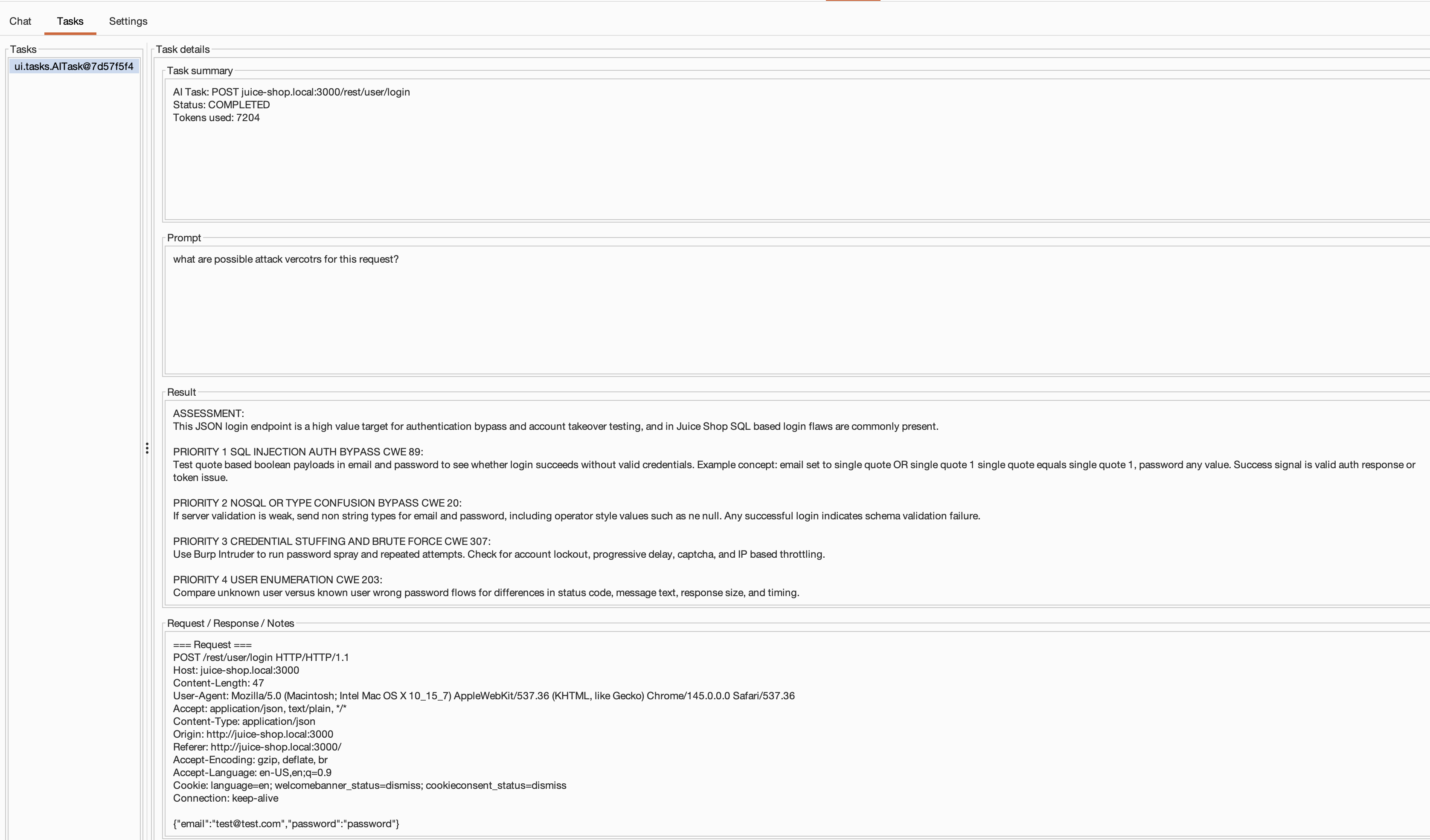 Tasks dashboard tracking editor-tab AI operations and their results
Closing Notes
AI Pal fills a gap until PortSwigger ships official bring-your-own-model support. If that happens, I’d happily switch—native integration will always have the tighter experience.
In the meantime, it works. It’s not as smooth as the native solution, but hey—it gets the job done. I’ve been using it in my research projects and it does what I need: analyze requests for vulnerabilities, explain traffic I’m staring at, generate attack vectors to try, and have back-and-forth conversations about what I’m seeing. The UI is Swing, the streaming can be choppy on slower models, and there’s no integration with Burp’s scanner or issue tracker. But you can swap providers, run fully local with Ollama, tweak the prompt templates, and control exactly where your data goes.
The code is on GitHub. MIT licensed. If you try it and something breaks, or you have ideas for improvements, open an issue. Give it a try sometime.